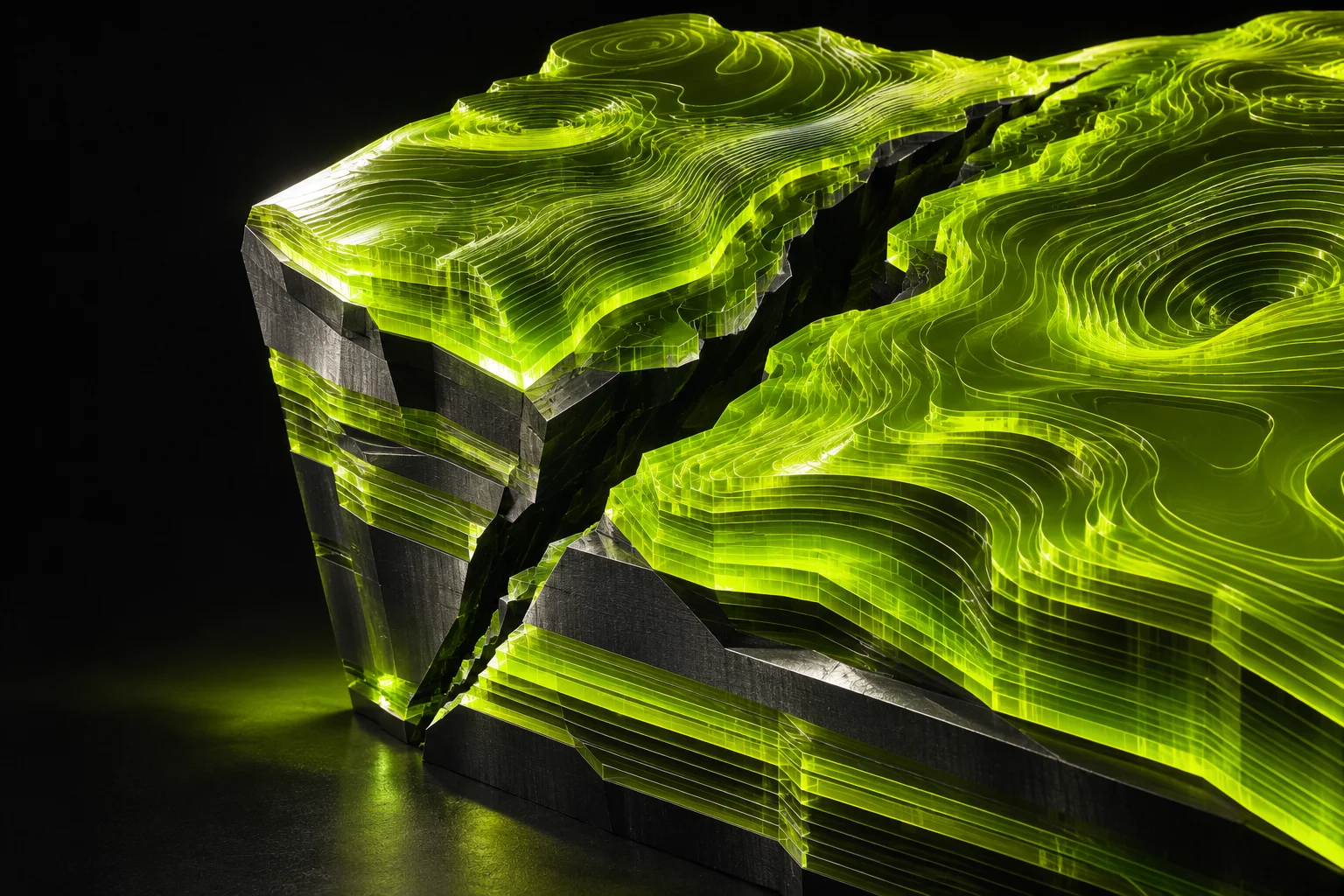
Acid-green geological relief on a dark ground
Serial publication / № 001Interface studies

FACEPLATE

The geological issue

Fault
Atlas.

Inside the issue
First edition
Plate 001 / FA
Cover plate / Fractured reliefRELAY Editions ✳ 001
01 / Current issueDesign notes

Working
in strata.

Fault Atlas brings a surveyor’s eye to Claude Code. A fractured ridge runs through the workspace. One line of acid green tells you exactly where you are.

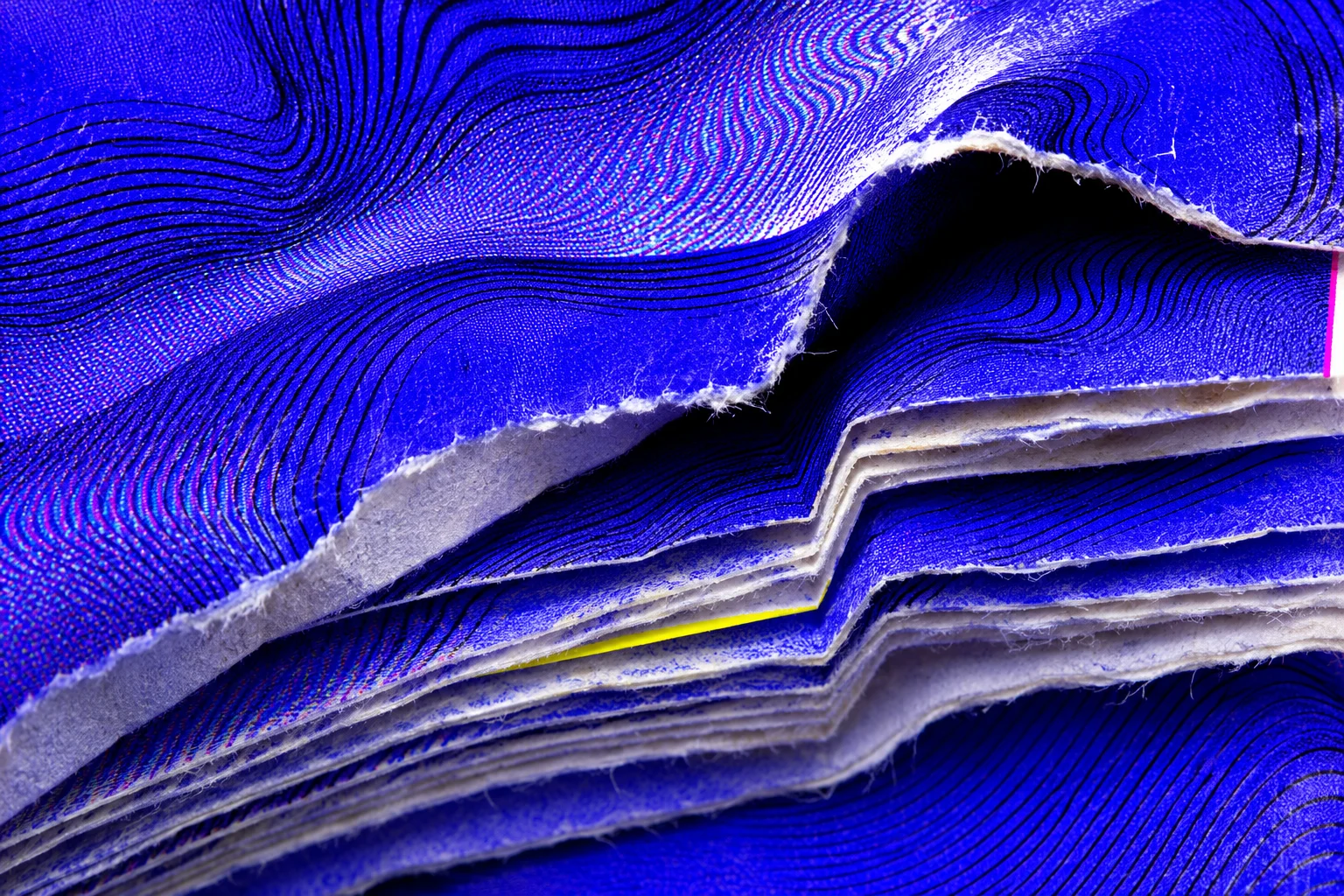
A cobalt geological print showing the layered structure of the ridge
Plate 02 / A section through the ridgeFault Atlas
Field notes / Materials

Ink holds the ground. Paper carries the words. Cobalt sets files and attachments apart, while a magenta line follows the keyboard. The ridge keeps still as you work.

02 / The collectionRELAY Editions

Library.

Inspect an edition, try its colors, and take the pack with you.

Edition 001

Fault Atlas

A geological interface for Claude Code. Selection, focus, and file paths each have their own color.

Download edition FAULT-ATLAS.FACEPLATE
Edition
1.0.0
Requires
Desktop Code 2.1.324+
Tested runtimes
2.1.326 / 2.1.327
Appearance proofInteractive sample
Fault Atlas
Field notebook / 001

Ridge survey

The north face breaks along three parallel seams.

Mark the exposed boundary.
Local palette preview · 64 KiB max

Installation

Set up Faceplate

The Code plugin displays your selected edition in a local Claude Code desktop session. The optional Settings extension gives you a file picker for the same library.

Install and apply in Code
  1. Extract Faceplate.zip and move the Faceplate folder to a permanent location. Open a local Claude Code desktop session with mods enabled. Library management requires Node.js 18 or later with node on the host’s PATH.
  2. Run each command in Code, replacing the placeholder with the full folder path. Review the local plugin trust prompt./plugin marketplace add <absolute path to Faceplate folder>/plugin install faceplate@faceplate-local/reload-plugins
  3. Import the edition. The packs folder in the archive includes Fault Atlas. Use its actual file path, including spaces./faceplate import <absolute path to fault-atlas.faceplate>/faceplate select fault-atlas
  4. Use /faceplate list to inspect the library. In another open session, run /faceplate refresh to pick up your choice.
Import through Desktop Settings Optional
  1. Download the Settings extension and the edition file. In Claude Desktop, open Settings → Desktop app → Manage next to Extensions → Advanced settings → Install Extension, choose Faceplate.mcpb, and review the prompt.
  2. In the extension configuration, choose the edition in Appearance pack file and save. Ask Claude to “use Faceplate to import the configured pack and select fault-atlas.”
  3. Open a local Code desktop session with the Faceplate Code plugin installed, or run /faceplate refresh in an open one. Chat and Cowork use their own appearance settings.
Use alongside Fault Atlas or restore defaults

If you have the standalone Fault Atlas kit, keep Fleet, Chorus, and your other tools. Disable the standalone Fault Atlas palette mod in Claude’s plugin manager so only one theme mod controls the session.

To restore the host appearance, run /faceplate default and refresh other open sessions. To remove Faceplate, then uninstall faceplate@faceplate-local and remove its faceplate-local marketplace. Local packs stay in your library.